
Attach Files
It can happen that a notification has already been opened in another place. In this case the notification documents must attached through a given menu.
The first step to attach files in already opened notifications is to press the button “Attach Files”:

After pressing the button it will be shown a window where you could attach files in the notification.
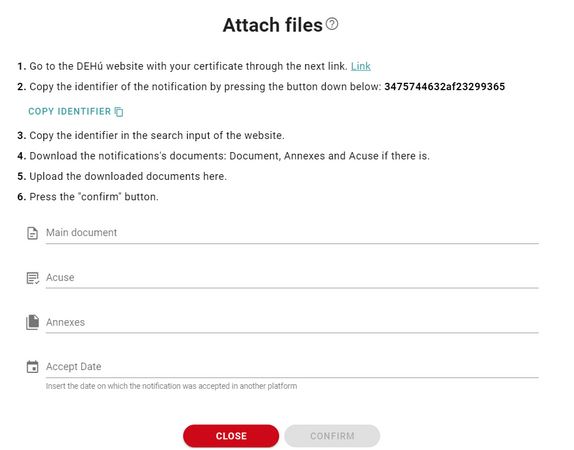
In this window the necesary steps to attach files to the notifications are shown. In the window there are 3 entries to attach files:
- Main document: In this first entry the main documents of the notification must be attached.
- Acuse: In this second entry a the acuse can be attached. This document is optional.
- Annexes: In this third window the annexes can be attached to the notification. These files are optional.
The last step is to insert the acceptance date of the notification. After introducing the files and setting the date, the “Confirm” button will show up and after pressing it the documents will be attached.
Newsletter susbcribe
Receive all the news and updates about GoodOK in your email.