
Advanced Notification Search
Advanced searches for notifications that meet multiple criteria at once can be configured. To do this, there is a button next to the text search field:

Clicking the button opens a window to configure the search options.
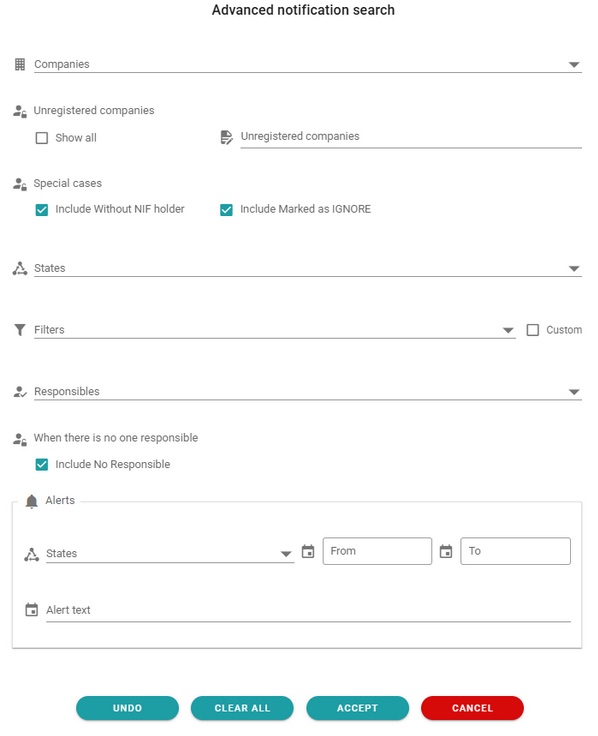
There are 4 action buttons:
- UNDO: Undoes the changes made and returns to the initial options.
- CLEAR ALL: Deletes all search configurations.
- CONFIRM: Executes the search with the selected criteria. If no criteria are selected, it returns to the Notifications List, disabling the advanced search and displaying all notifications for the selected period.
- CANCEL: Closes the advanced search configuration window and returns to the Notifications List, disabling the advanced search and displaying all notifications for the selected period.
Configurable search criteria:
- Companies: Allows selecting the companies from which notifications are to be displayed. You can type text in the search field to more easily find the company or companies you want to select. As text is entered, it narrows down the companies that contain the same.
- Unregistered companies: Allows you to search for notifications whose owner is an unregistered company that have been sent to a company that is registered, but only as the recipient. You can choose to view all notifications in this situation or filter by specific companies.
- Special cases for NIF Holder: The platform administrator can choose whether or not to view notifications that do not have a NIF Holder, or those that do not have one and were marked to be ignored.
- Statuses: You can select the statuses of the notifications you want to display. For example, if you only want to view those that are already open, select the statuses Accepted, In Process, and Completed. If you only want to see those that are open but not yet being attended to, select Accepted only, etc.
- Filters: You can search for notifications that meet any of the selected filters. For example, notifications from the Treasury or Tax Agency, or from Social Security, or both, or more specific customized filters. Alternatively, you can check the Custom box, which allows narrowing the search to the issuing body or the root body, either by its DIR3 code or by the name of the body. In the case of a name search, it will look for bodies whose name includes the entered text, allowing for broader searches.
- Responsible Parties: You can search for notifications assigned to the selected operators or groups, whether they are currently active or have been disabled. This allows you, for example, to search for notifications where the responsible was a person who is no longer active or a group that has been deleted. You can also choose whether or not to include notifications that do not have an assigned responsible.
- Alerts: Notification alert searches can be configured using combinations of status (Pending, Urgent, or Expired), dates, or keywords that may appear in the alert text.
For instance, if alerts are used to set reminders for response deadlines with text such as “Deadline to respond,” you can search for notifications with an alert in Urgent status that contains the word “respond” in the text to filter for those that are still awaiting a reply and whose deadline is approaching. - Concept: You can search for notifications that include certain texts in their concept (subject). Multiple texts can be searched simultaneously by separating them with commas. The search will look for notifications whose concept field (subject) contains any of them. The search is case-insensitive and ignores accents.
- Remarks: You can search for notifications that include specific text in their Remarks field, as specified in this section. Multiple search terms can be used simultaneously by separating them with commas. Notifications whose subject field (concept) contains any of the specified terms will be included in the results. The search is case-insensitive and ignores accents.
- Unregistered companies: Allows you to search for notifications whose owner is an unregistered company that have been sent to a company that is registered, but only as the recipient. You can choose to view all notifications in this situation or filter by specific companies.
- Type of delivery: The notifications to be displayed can be restricted to Notifications, Communications, or All.
When an advanced search is active, the text Notifications and the advanced search button change color to highlight that an advanced search is being applied.

The advanced search is applied to the notifications for the selected period. If any additional search text is included in the global search field, it will be applied to the results of the advanced search.
Fields that are configured with a search option are marked with a green magnifying glass to make it easier to identify the search criteria that have been entered.
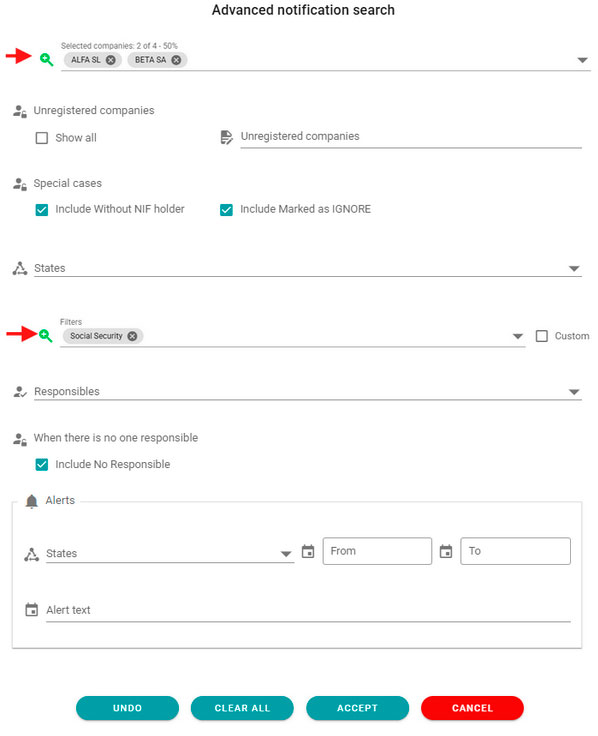
The advanced search is applied to notifications within the selected period. If any additional search text is entered in the global search bar, it will be applied to the results of the advanced search.
Newsletter susbcribe
Receive all the news and updates about GoodOK in your email.