Notification List
To access the list of notifications, click on the NOTIFICATIONS tab in the desktop version, or on the icon in the mobile version:

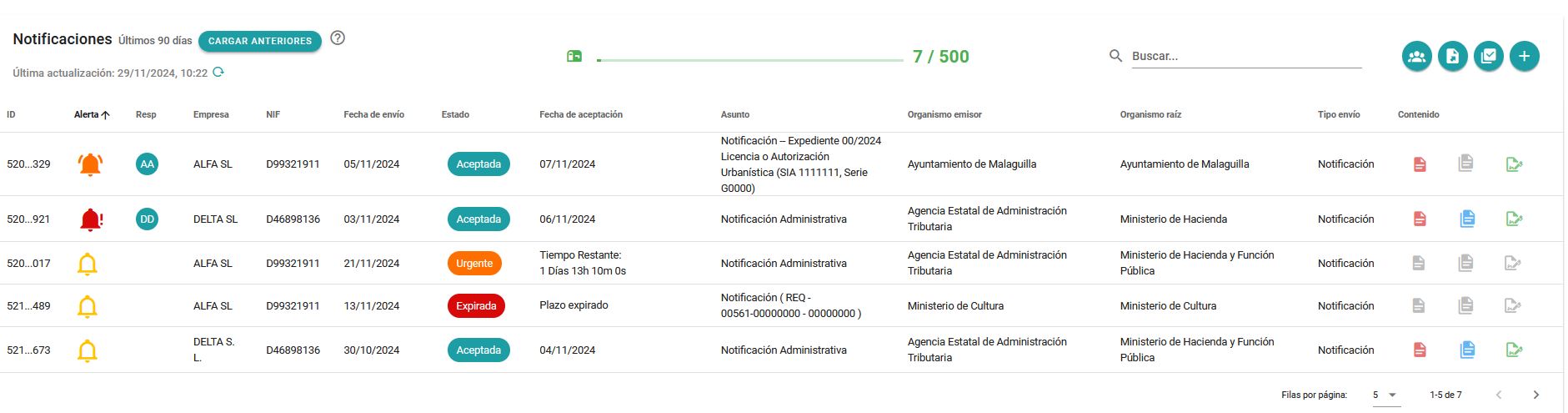
The list displays notifications from the last X days, showing the most relevant information about each. The number of days in the default download period can be configured between 15 and 120. This allows adjustment of the time range to limit the volume of notifications loaded by default, which, if too high, could impact browser performance and therefore the performance of the application.
Additionally, there is a default limit of 1,000 notifications that are downloaded automatically. This value can also be adjusted to optimize system performance. If the number of notifications within the initial download period exceeds the set limit, an alert message is displayed.

In addition to the initial load, other notification periods can be selected.
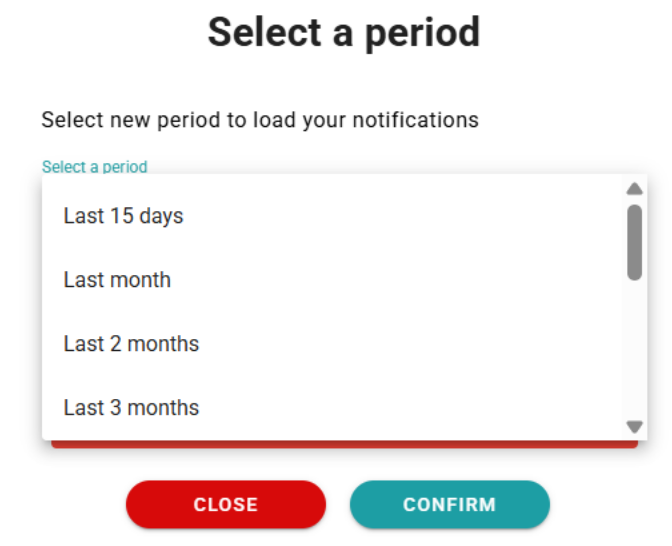
The available options to choose from are:
- Last 15 days
- Last month
- Last 2 months
- Last 3 months
- Last 6 months
- Last 12 months
- Last 18 months
- Last 2 years
- All
Alternatively, a date range can be specified to display notifications from specific dates.
Once a period is selected, all notifications recorded during that period are retrieved without applying any limit. It is important to note that if the volume of notifications for the selected period is very high, browser performance may be affected.
Within the received notification list, you can perform searches, sort by columns, export to CSV, and carry out any of the available actions.
By clicking on a notification, you can view its details, associated documents, and the actions that can be performed.
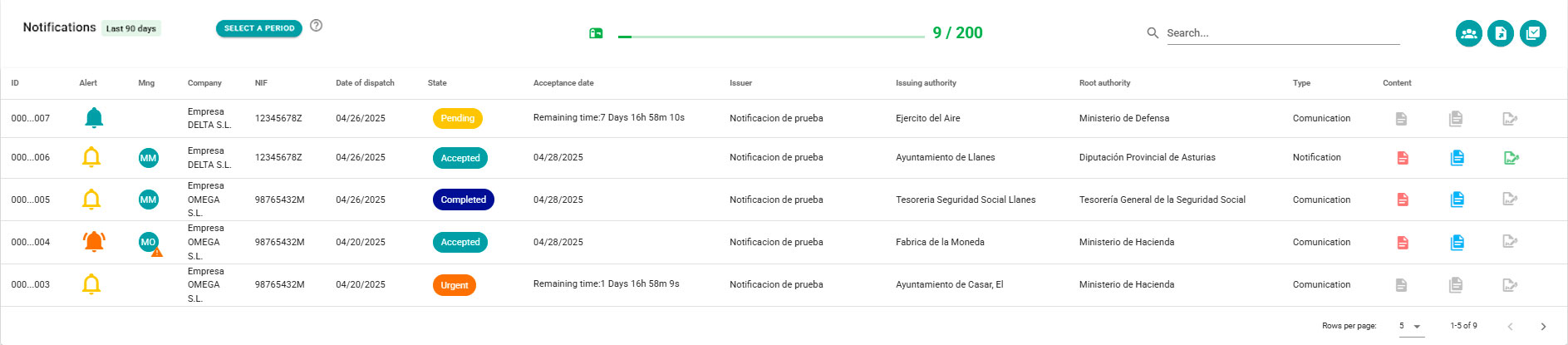
The list has a bar that shows us how many notifications have been used (including those in the history and those that have been deleted when deleting a company) and the maximum that our current plan allows.
On the Notification List screen, general actions can be performed with the buttons at the top right, as well as other actions on certain icons of the information for each notification.
The search engine allows you to search by free text for notifications that contain this text in any of the fields that appear.
Thus, it allows you to filter notifications whose recipient company contains the text, or the NIF/CIF, or the status of the notification matches, or the subject contains this text, as well as the issuing body or the root body.
The notifications in the list can be sorted by any of the columns by clicking on the name of the column to sort them in ascending order, if you click again, in descending order, and if you click again, it returns to the default order which is by date of sending.
General actions on notifications
General actions can be performed for the set of notifications in the list with the buttons at the top right:
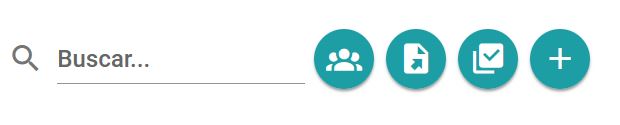

Show operators by notification
This action is only available for users with administrator permissions.

Export to CSV
Generates a file in CSV format to be downloaded to the device with the details of the notification information displayed in the list, applying the filters that have been set.

Massive Actions
Allows you to perform the same action for a set of selected notifications as explained in the Batch Actions section.
This action is only available to users with administrator permissions.

Add a Notification
Allows manually adding a notification as explained in the Add Notification.
Actions on a Notification
For the details of a notification, actions can be performed directly from the list without the need to open the notification.
The actions that can be performed are:
ALERTS
In the Alerts column, hovering over an alert will display the alert’s date and subject.
Alerts are color-coded for quick status identification:
- Yellow with a white background: No alert defined.

- Blue: Alert with an expiration date more than 3 days away.

- Orange: Alert with an expiration date less than 3 days away (urgent).

- Red: Alert with an expired expiration date.

If no alert is defined, you can click on the bell to create it directly from the notification list screen, without needing to open the notification detail screen.
RESPONSIBLE
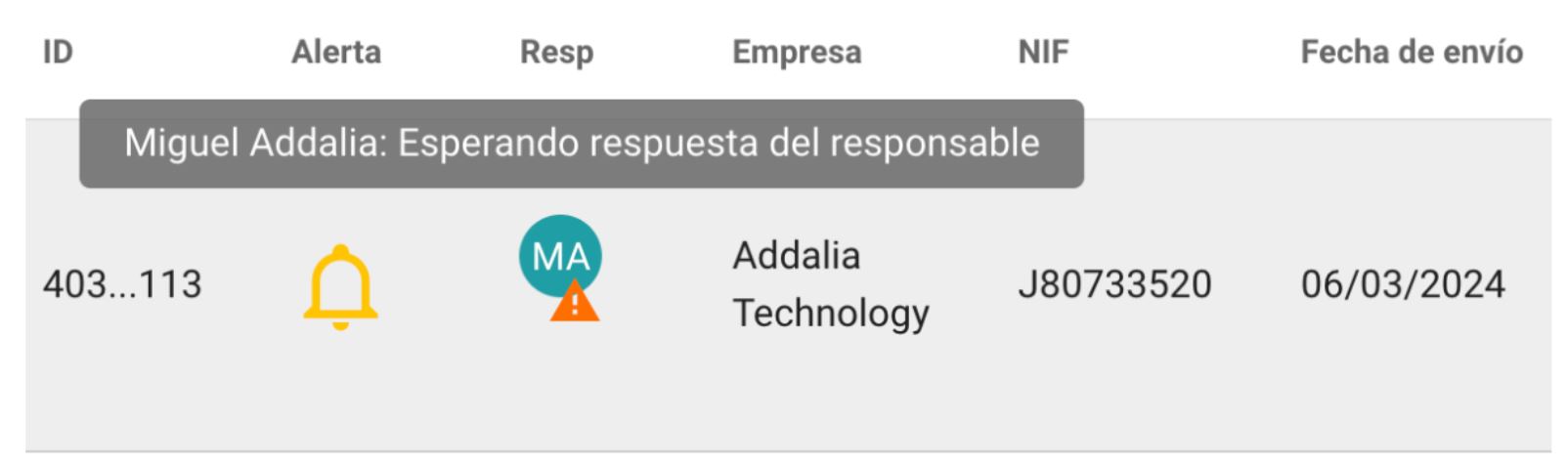
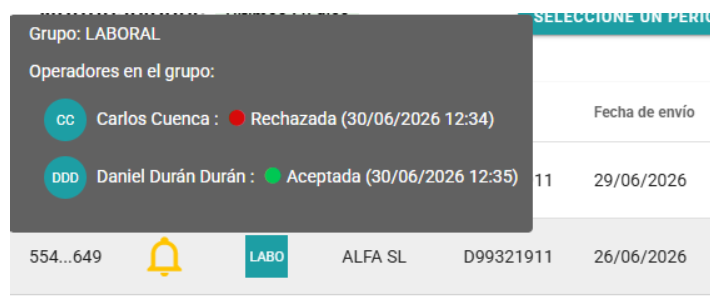
The “Responsible” column shows the responsible party (operator or group) assigned to a notification. If left blank, the notification has no assigned owner. If an owner is assigned, their avatar is displayed (round for operators, square for groups).
For responsible operators, hovering over the avatar overlays their first and last name; additionally, if there is an issue with this owner, a description is displayed.
For responsible groups, hovering over the avatar overlays a list of operators who can view that notification, showing for each one whether they have accepted or rejected liability, or have taken no action yet.
Incidents that may arise:
- Orange triangle: The person assigned to the notification has not yet accepted responsibility.
- Red triangle: The person assigned to the notification does not have access to it (because they have been disabled from the platform, or their settings have been changed and they no longer have access to the notification).
NIF
This feature is only available to users with administrator permissions.
In some exceptional cases, the organizations issuing the notifications do not include the NIF (CIF) of the holder of the notification, which prevents the application of filters so that the different operators can see the notification, or the automatic tasks can be executed on them if applicable.
In these cases, an orange triangle is shown in the column name and in parentheses the number of notifications that do not have a NIF of the holder.
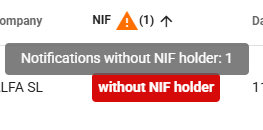
Sorting the notifications by this column displays first the notifications that do not have a NIF Holder with the legend on a red background: without NIF Holder.
In the Notification Detail, the notification can be assigned to one of the companies on the list so that it takes its NIF/CIF as the missing NIF Holder data and can be managed appropriately by the application filters. See the Notification without the holder´s NIF section where it is explained how to add the NIF Holder.
Notifications from unregistered companies
This functionality only applies to clients of the Company type.
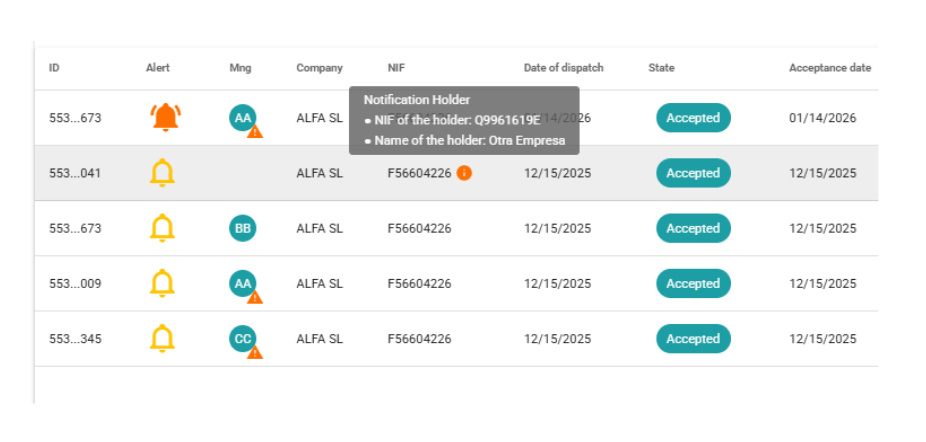
In some cases, notifications are received where the recipient is the registered company, but the owner of the notification is a different company because the Issuing Authority decides to send the notification to the recipient as if they were an authorized representative of the owner.
In GoodOK, these notifications are collected and displayed showing the registered company, along with an information indicator highlighting that the owner company is different. When hovering over the NIF, the details of the company that owns the notification are displayed.
Newsletter susbcribe
Receive all the news and updates about GoodOK in your email.