
Select your user role and access the features of your profile
Companies
Standard User
If you are a “standard” user, the menu shows you a list of companies for which you can manage notifications based on the permissions and filters you have defined.
This allows you to verify that all the companies from which you need to receive notifications are present in order to ask the application administrator to include those that may be missing.
Next to the Company title, in parentheses, the number of companies in the list is indicated.
Advisory Type Admin User
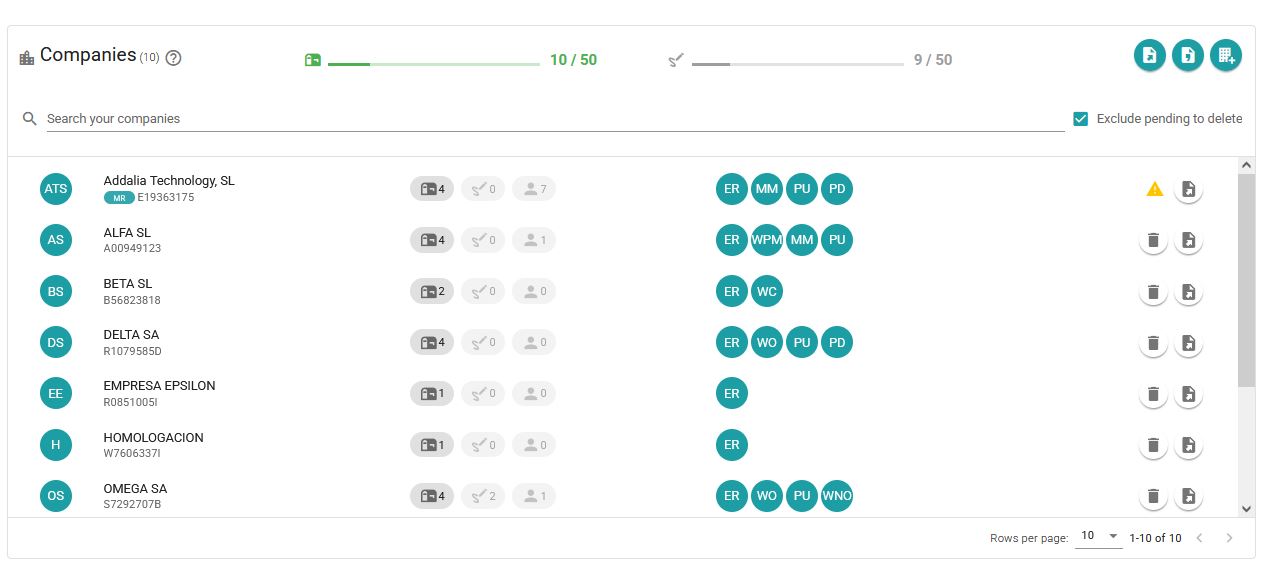
If you are a user with Advisory type Administrator permissions, you can: create, modify and/or delete a company.
In this menu you can see how many companies we have created for notifications and how many for signature operations.
We can also see the usage of the plan regarding notifications and signatures.
Company information can be exported by clicking the first button.
Additionally, the menu allows users to view all the companies that have been created and are under their control, and export notifications for that company.
You can search for companies through the name, CIF, or telephone number of the company.
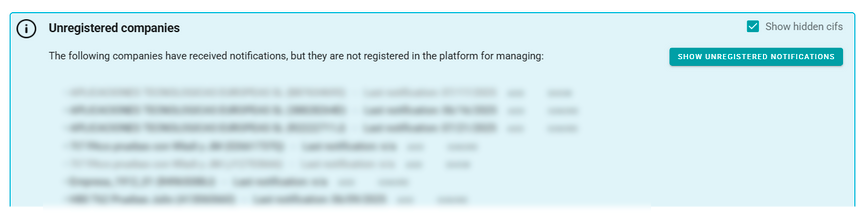
Unregistered companies
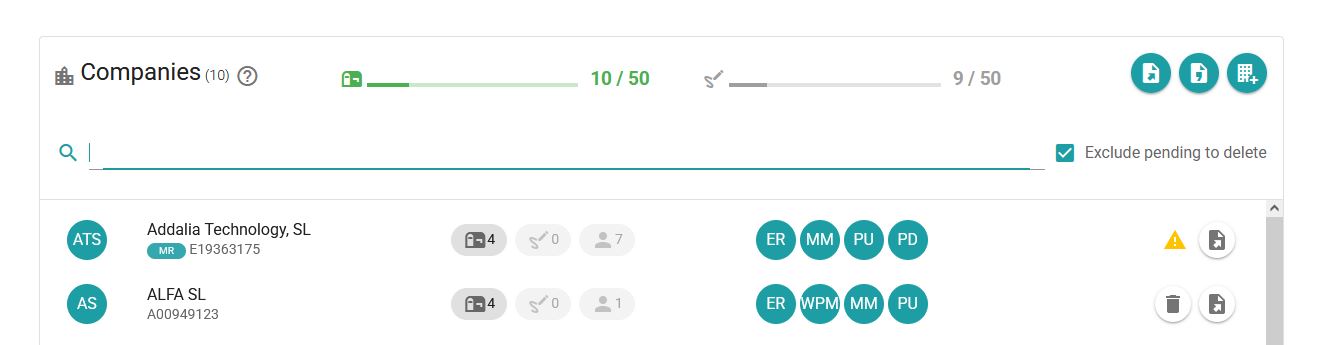
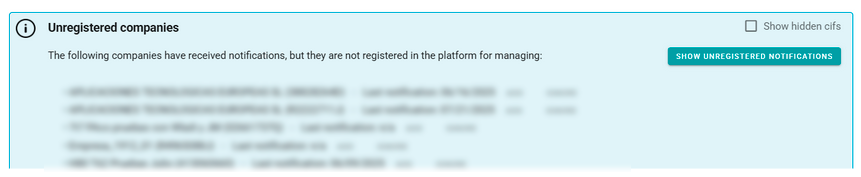
At the bottom there is information about those companies that have received notifications but are not registered. This allows us to identify the companies and individuals for which notifications are being received but GoodOk is not saving them because their recipients are not in the list of companies.
For each of the companies on this list we initially have two options:
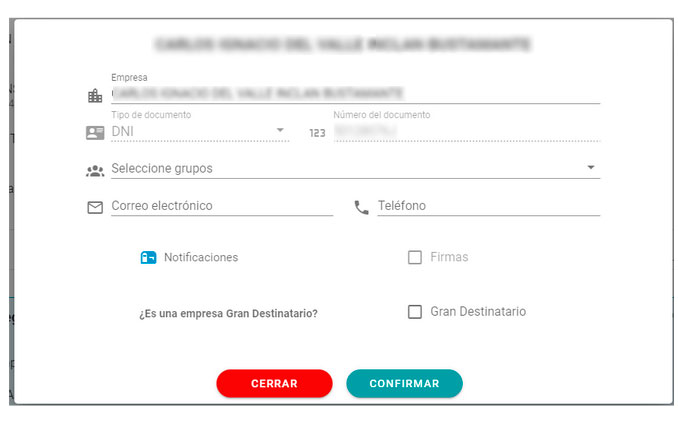
ADD: It opens the form to create a company with the basic data we have about it: Name, type of document and document number, and selected the Notifications option. We can complete the rest of the information as explained in the Create Company section and confirm to add it to our list and have GoodOk start recording its notifications.
IGNORE: If we do not want to have the company on the unregistered list, with this option we hide it so that it does not appear on the list. For example, because we know that it is a company or person that authorized us in a certain organization but we no longer work with them and they have not revoked the authorization.
We can always see the companies / people that we have ignored by checking the “Show ignored companies” option, so that the ignored ones are also included in the list. For them, instead of the IGNORE option we have the SHOW option to recover it in the list of Unregistered Companies.
Unregistered Notifications
GoodOk receives from DEHU all notifications addressed to the CIF/NIF of the certificate being used to request notifications. However, it only stores and processes those notifications whose CIF/NIF holder matches one of the registered companies. In this way, only the notifications that are intended to be managed are stored, and the rest are discarded.
To make it possible to identify notifications that are not being stored for processing, a list of unregistered notifications from the last 15 days is maintained. This allows verification to ensure that no notifications that should be stored are being discarded simply because the holder’s CIF/NIF is not registered.
By clicking the button…

In the Unregistered Companies section, the list of unregistered notifications is displayed.
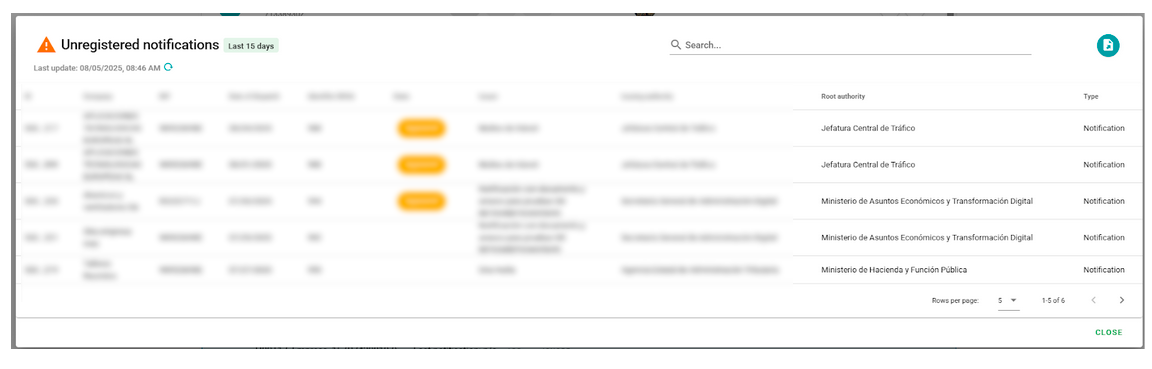
The list displays the holder of the notification, the DEHU identifier, the issuing body and the root organization, the type of delivery (Notification or Communication), the Subject, and—if DEHU has informed us that the notification has been acknowledged—the acknowledgment status. In all other cases, no status is shown, as it may be Pending, Expired, or even Acknowledged, but DEHU has not yet communicated it.
In the list of unregistered notifications, searches can be performed by entering text, just like in the list of notifications processed by GoodOk. It is also possible to export the notifications to a CSV file for external processing.
The list is updated every 12 hours, but it can be manually refreshed to show the latest received items by clicking the button:

When notifications are received but not registered, the system generates an email the following day indicating that unregistered notifications were received the previous day. The email includes the total number of such notifications and displays the last five received. By accessing the application, all of them can be viewed in detail in the list shown above.
This email is sent to all users with the Administrator role for managing Companies.
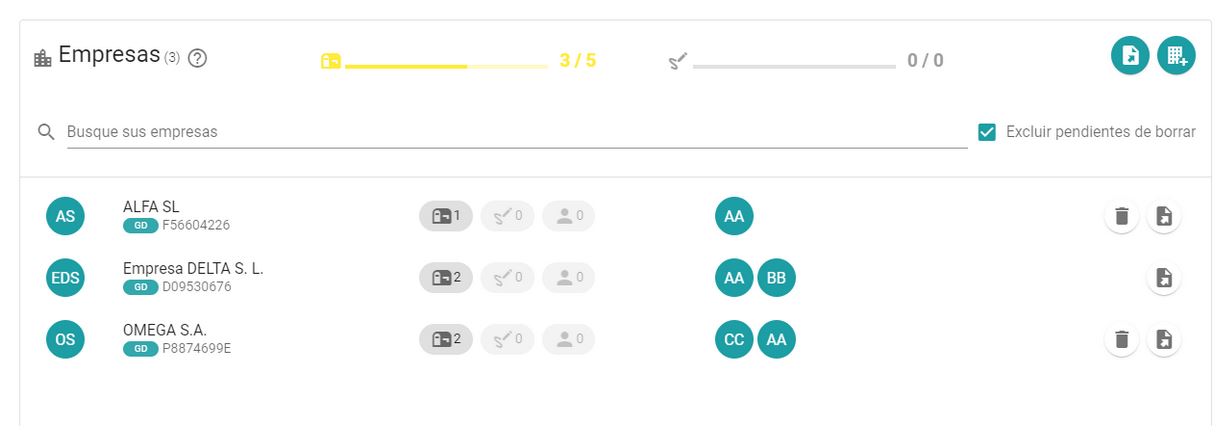
Company Type Admin User
If you are a user with Company Administrator permissions, you can: create, modify and/or delete a company.
In this menu you can see how many companies we have created for notifications and how many for signature operations.
We can also see the usage of the plan regarding notifications and signatures.
Company information can be exported by clicking the first button.
Additionally, the menu allows users to view all the companies that have been created and are under their control, and export notifications for that company. You can search for companies through the name, CIF, or telephone number of the company.
Unregistered companies
At the bottom there is information about those companies that have received notifications but are not registered. This allows us to identify the companies and individuals for which notifications are being received but GoodOk is not saving them because their recipients are not in the list of companies.
For each of the companies on this list we initially have two options:
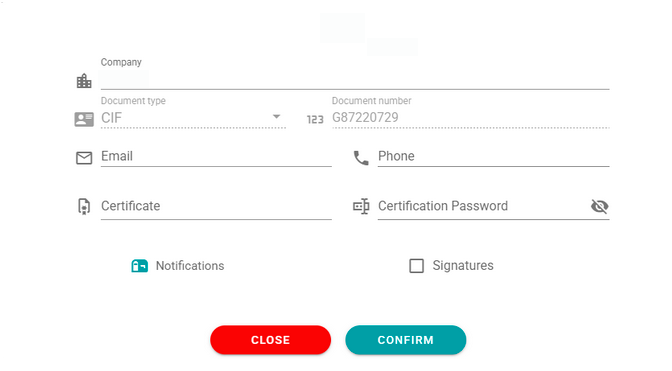
ADD: It opens the form to create a company with the basic data we have about it: Name, type of document and document number, and selected the Notifications option. We can complete the rest of the information as explained in the Create Company section and confirm to add it to our list and have GoodOk start recording its notifications.
IGNORE: If we do not want to have the company on the unregistered list, with this option we hide it so that it does not appear on the list. For example, because we know that it is a company or person that authorized us in a certain organization but we no longer work with them and they have not revoked the authorization.
We can always see the companies / people that we have ignored by checking the “Show ignored companies” option, so that the ignored ones are also included in the list. For them, instead of the IGNORE option we have the SHOW option to recover it in the list of Unregistered Companies.
Unregistered Notifications
GoodOk receives from DEHU all notifications addressed to the CIF/NIF of the certificate being used to request notifications. However, it only stores and processes those notifications whose CIF/NIF holder matches one of the registered companies. In this way, only the notifications that are intended to be managed are stored, and the rest are discarded.
To make it possible to identify notifications that are not being stored for processing, a list of unregistered notifications from the last 15 days is maintained. This allows verification to ensure that no notifications that should be stored are being discarded simply because the holder’s CIF/NIF is not registered.
By clicking the button…
In the Unregistered Companies section, the list of unregistered notifications is displayed.
The list displays the holder of the notification, the DEHU identifier, the issuing body and the root organization, the type of delivery (Notification or Communication), the Subject, and—if DEHU has informed us that the notification has been acknowledged—the acknowledgment status. In all other cases, no status is shown, as it may be Pending, Expired, or even Acknowledged, but DEHU has not yet communicated it.
In the list of unregistered notifications, searches can be performed by entering text, just like in the list of notifications processed by GoodOk. It is also possible to export the notifications to a CSV file for external processing.
The list is updated every 12 hours, but it can be manually refreshed to show the latest received items by clicking the button:
When notifications are received but not registered, the system generates an email the following day indicating that unregistered notifications were received the previous day. The email includes the total number of such notifications and displays the last five received. By accessing the application, all of them can be viewed in detail in the list shown above.
This email is sent to all users with the Administrator role for managing Companies.
Newsletter susbcribe
Receive all the news and updates about GoodOK in your email.