
Notification Details
It shows all the information about a Notification and the actions that can be performed on it.
If the notification has not been opened yet and the documents are not available, it shows two information panels:
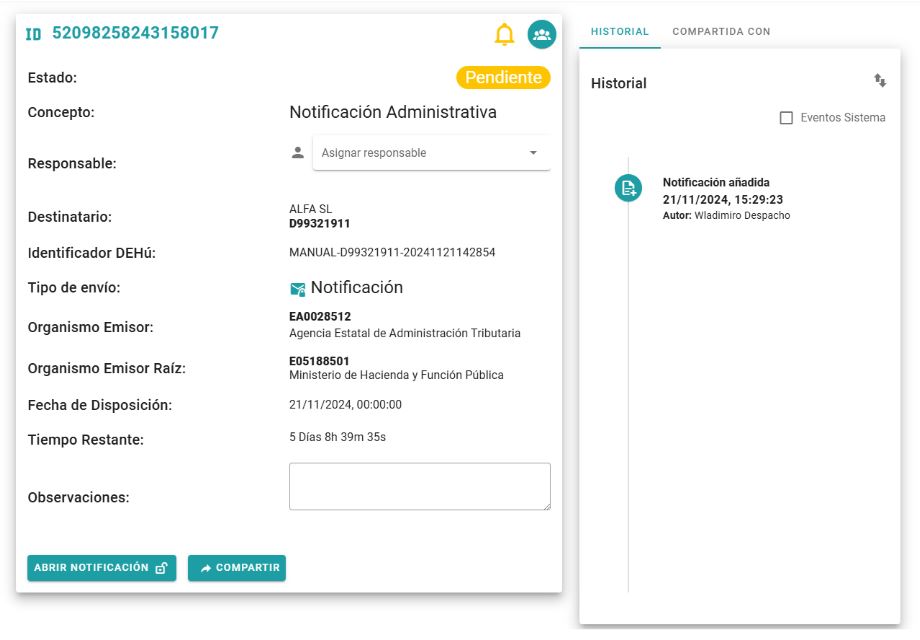
If the notification has been opened, it displays 3 information panels:
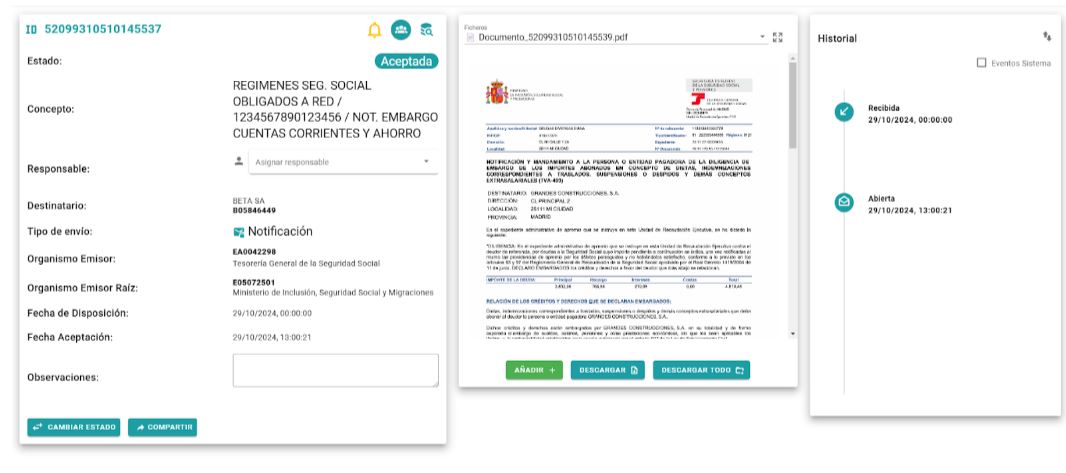
- The panel on the left contains the detailed information about the notification and most of the actions that can be performed on it.
- The central panel contains the documents of the notifications that have already been submitted and the options for taking action on them.
- The panel on the right contains the history of events that occurred with the notification.
Information panel
- The top left shows the notification identifier (ID).
- The top right shows a series of action buttons:


Notification metadata
This action is only available to users with administrator permissions.
Displays the metadata that has been obtained from the notification and that can be used to automate tasks based on it.

Show operators
This action is only available for users with administrator permissions.
When pressed, a list of operators who can see this notification is displayed, so you can verify that it is accessible to the desired operators.

Alert
If an alert is configured, it shows the alert’s expiration date and the alert’s status color:
- Yellow and white background: No alert defined.
- Blue: alert with an expiration date greater than 3 days.
- Orange: alert with an expiration date less than 3 days (urgent).
- Red: alert with an expiration date that has already passed.
The Create Alert and Modify Alert sections explain how to configure alerts.
Notification Status shows the status of the notification.

For Public Administrations there are only three states:

Pending
The notification has been made available to the Holder, who has a period of time (in most cases 10 days) to appear (open) the notification.
If it is not appeared within this period, it becomes Expired.

Accepted
When the notification is accessed by the Holder or a representative, the associated documents are retrieved, and the deadlines established by the procedure related to the notification begin to run.

Expired
The notification was not accessed within the stipulated timeframe. The deadlines established by the procedure begin from the expiration date.
In GoodOk, the following additional statuses are included as variations of the ones mentioned above:

Urgent
Notification pending with less than 3 days remaining until the 10-day expiration period.

In process
Accepted notification where a user has assigned this status for informational and classification purposes.

Completed
Accepted notification where a user has assigned this status for informational and classification purposes.
Concept: The concept text of the notification provided by DEHU.
Responsible Party: Displays the person assigned to the notification or a dropdown menu to select one.
Refer to the Notification Responsible section for details on its functionality.
Recipient: Displays the Holder’s name and NIF as recorded by DEHU. The Holder’s name may not match the company name since it is defined by the issuing organization, which does not always align with the corporate name.
The Holder’s NIF may sometimes be blank, in which case it is displayed with a red background label.
Users with Administrator permissions can manage notifications without a Holder’s NIF, as explained in the Notifications Without Holder’s NIF section.
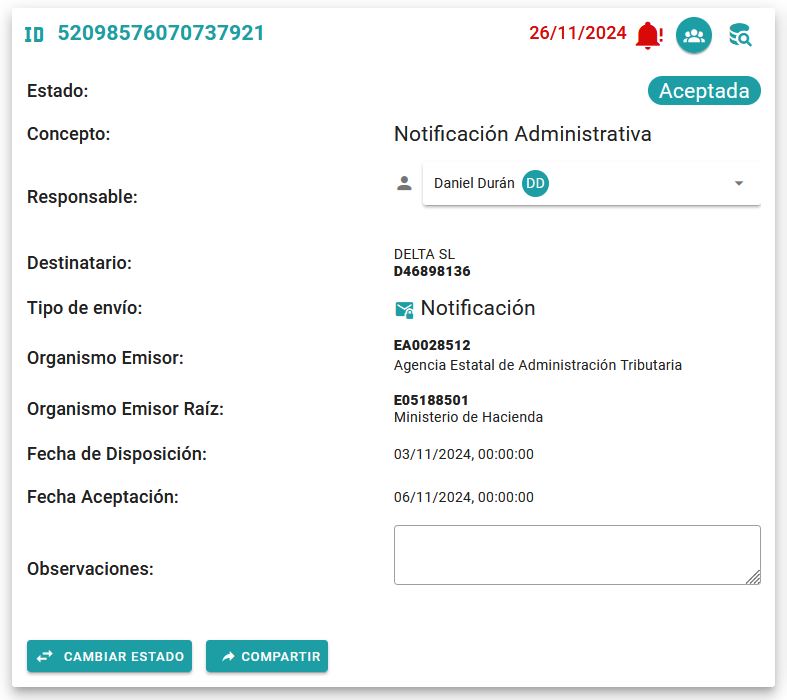
DEHU Identifier: Displays the identifier assigned by DEHU to the notification.
Delivery Type: Can be Notification or Communication. This information is provided by DEHU.
Issuing Organization: Displays the DIR3 Code and the name of the issuing organization.
Root Issuing Organization: Displays the DIR3 Code and the name of the root issuing organization.
Availability Date: Displays the availability date provided with the notification.
 If the notification is in a Pending state, it shows the field:
Remaining Time: Displays the time remaining until the usual 10-day period elapses, at which point the notification transitions to an Expired state. This data is not provided by DEHU; the calculation of the 10-day period is an informational reference generated by GoodOk. Therefore, it is not official data from the issuing organization and does not have binding value.
If the notification has been accessed (opened), it displays the field:
Acceptance Date: The date when the notification was accessed, marking the start of the processing deadlines corresponding to the notification’s procedure.
 If the notification is in an Expired state, it displays the field:
Expiration Date: The date when the notification expired.
Remarks: A field for recording observations related to the notification. Details on adding remarks are provided in the “Add Remarks” section.
At the bottom of the panel, the following action buttons are displayed:
In the case of a notification in a Pending or Expired state:
In the case of a notification in Accepted status and if the user has notification processing permissions:
Document panel (center)
When a notification is served and the documents are obtained, a central panel is incorporated to be able to browse the documents, download them and add additional documents.
In the Files section, a drop-down menu can be opened to browse the different documents that will be shown in the central part.
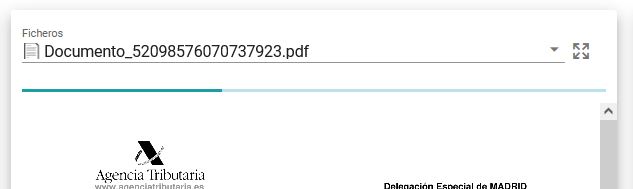
Pressing the four arrow button opens a larger window to facilitate reading the selected document.
If the user has notification processing permissions, document-specific action buttons are displayed at the bottom:

History panel (right)
The panel on the right shows the history of the actions taken on the notification since the beginning.
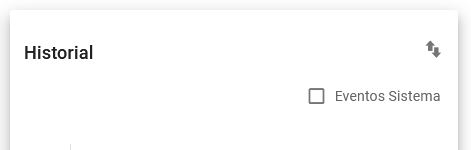
With the double arrow button you can sort the history from the first date the notification was created or by showing the last action above, continuing with the previous dates.
If the System Events option is checked, it is interspersed between the actions, the events that the system has carried out of emails sent and not sent to users before the main actions and that allow us to track who has been informed and who has not.
The history entries record the action performed, the date, the author (GoodOk operator, but also if it was an Automatic Task, which is marked as TA – Task Name).
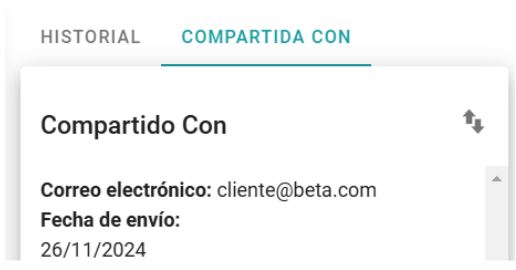
When a notification is shared, a second tab is generated in the panel that shows the times a notification has been shared and the details of said action.
The Share notification section describes how to share the notification and the options that can be configured.
Newsletter susbcribe
Receive all the news and updates about GoodOK in your email.