
Share Notification
We can share the notification in two ways:
1. Share via link
This option generates a link to access the notification details. Once the link is generated, the link identifier appears in the history menu.
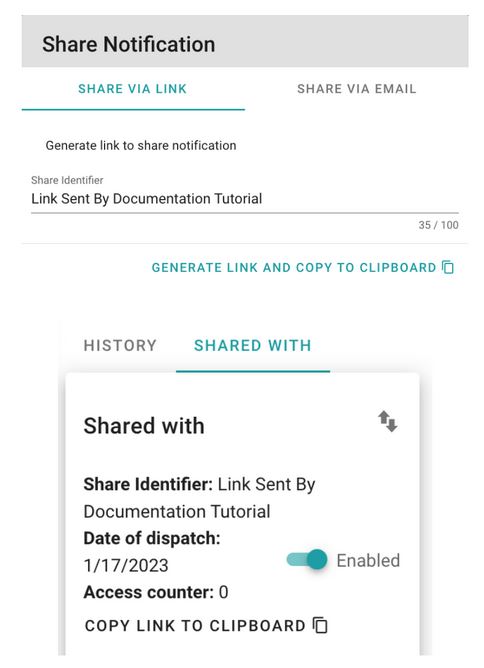
The link can be disabled. While it is disabled, it will not be functional.
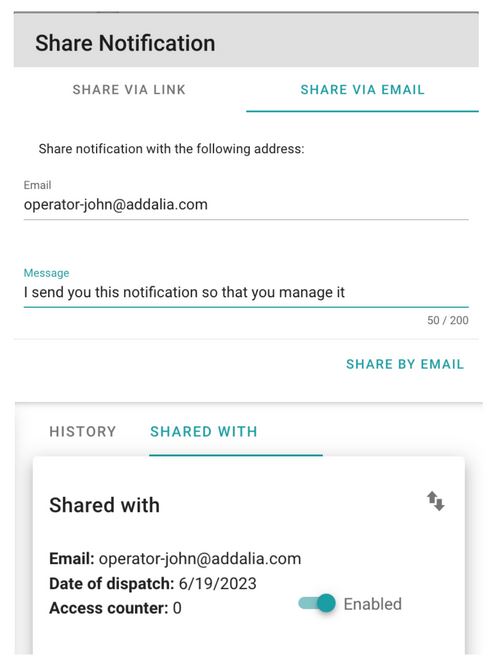
2. Share via email
This option generates a link to access the notification details, which the user/users receive via email. Once the link is generated, the link identifier appears in the history menu. In this case, there is no ‘COPY LINK’ option for more restricted access:
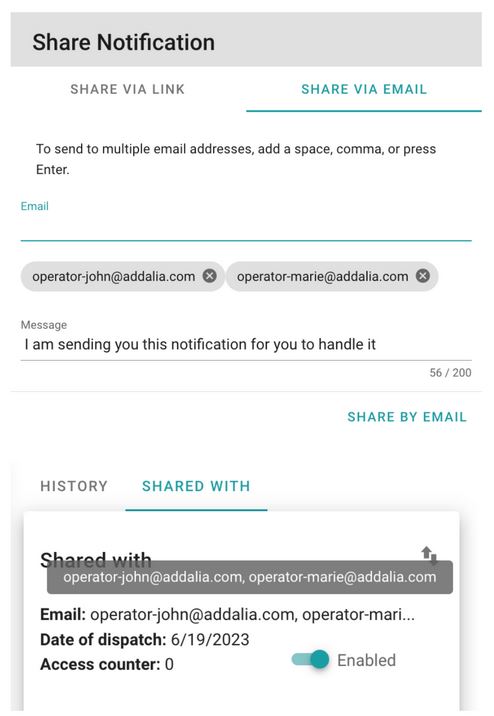
To share the notification with multiple email addresses, enter a comma, space, or press Enter after each address to add more addresses:
Newsletter susbcribe
Receive all the news and updates about GoodOK in your email.