Profile Configuration
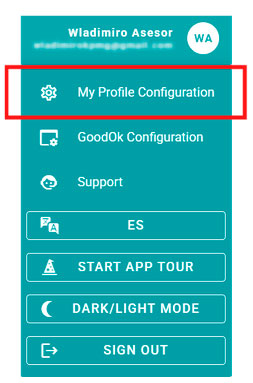
Standard User
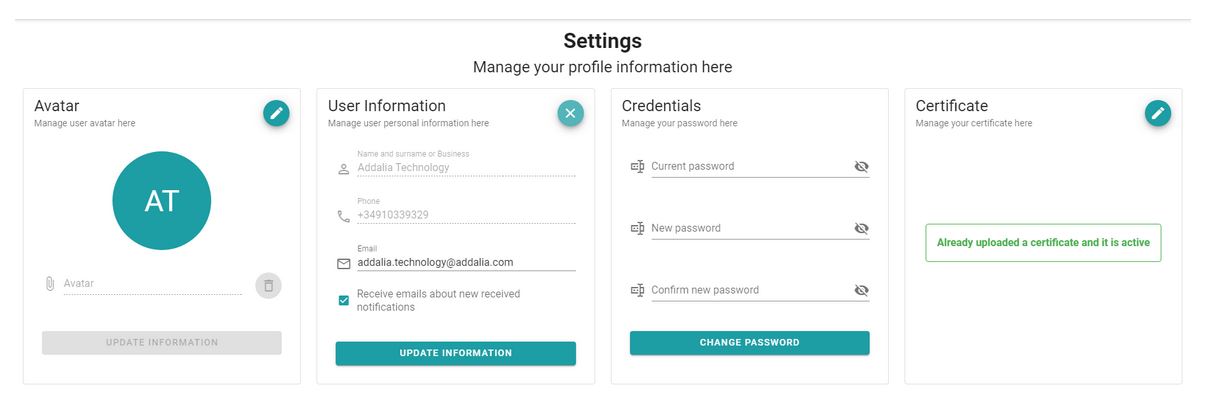
If you are a standard user, you will see 3 sections to edit your configuration information: Avatar, User Information, and Credentials.
Avatar
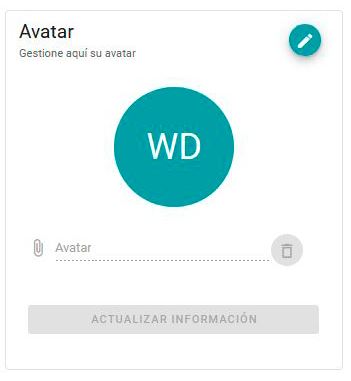
Allows you to upload an image that represents you and will appear associated with your username. To do this, click the edit button (pencil icon), then click on the file name or the Avatar text. A window will open for you to select the file with the image you want to upload. Click on UPDATE INFORMATION to save the changes.
You can delete the avatar at any time using the trash can button.
If no image is selected, the avatar will display the initials of your first and last name.
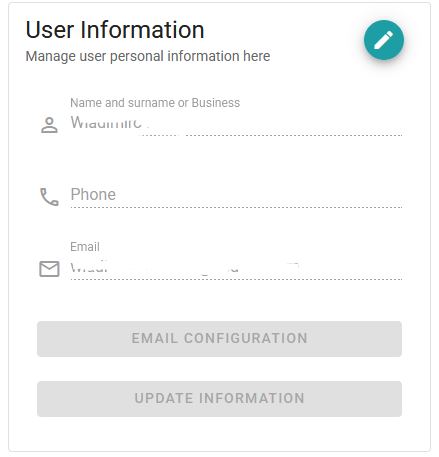
User Information
Displays your First and Last Name, phone number, and email address. The first two cannot be modified. The email address can be edited by clicking the pencil icon and then clicking UPDATE INFORMATION after making the changes. If you change the email address, your login username for the application will be updated to the new email address.
In this section, you can also configure the emails you want the system to send you or not. You can see how to configure these settings in the Modify Email Options section.
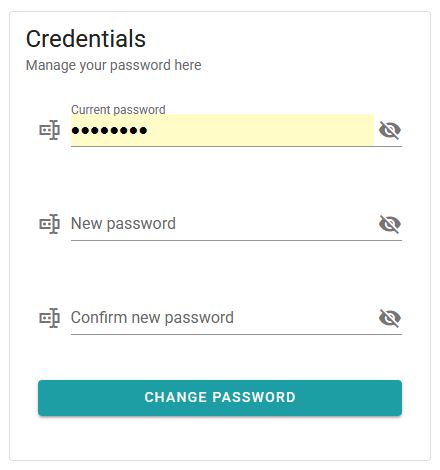
Credentials
If you wish, you can change your password to one that is easier for you to remember.
Passwords must have a minimum of 8 characters, including uppercase letters, lowercase letters, numbers, and special characters.
If you are a user with administrator permissions to upload certificates, you will also have:
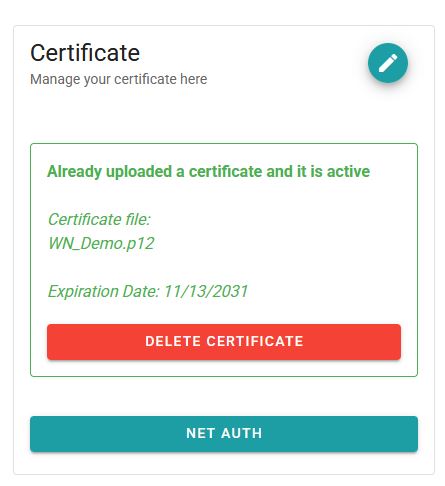
Certificate
A section to upload the digital certificate of the main company, as explained in the Certificate Upload section.
Services and Contracted Packages
At the bottom of the screen, a summary of the services and packages contracted is displayed, including the expiration date and current usage level.

Newsletter susbcribe
Receive all the news and updates about GoodOK in your email.