Modify Alert
To modify an already created alert, click on the bell icon shown below (the color of the alert changes depending on the status of the notification, green for accepted, red for expired, yellow for urgent):
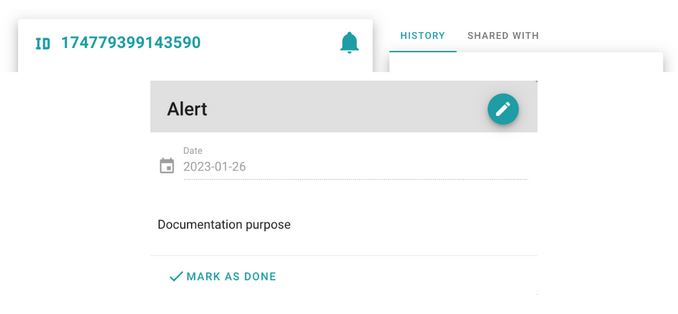
To modify this alert, click on the pencil in the upper right, you can modify both the date and the text of the alert.
If you click on ‘Mark as Done’, the alert will be deleted.
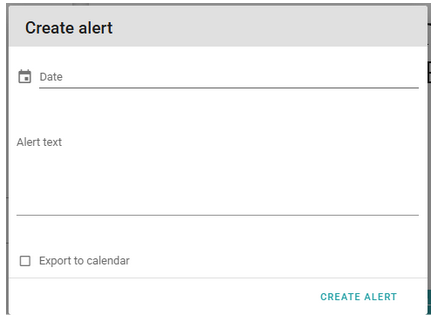
The alert can be exported at any time in .ics format to add it to any calendar that supports this format (Outlook, Google Calendar, etc.).
Newsletter susbcribe
Receive all the news and updates about GoodOK in your email.