
Select your user role and access the features of your profile.
Create company
Advisory Type Admin User
To create companies through the menu, we press the ‘+’ button, which is located in the upper right corner.

When you press the button, a form is displayed to complete the company information. Once the data is completed, with the ‘confirm’ button the data is saved and the company is created.
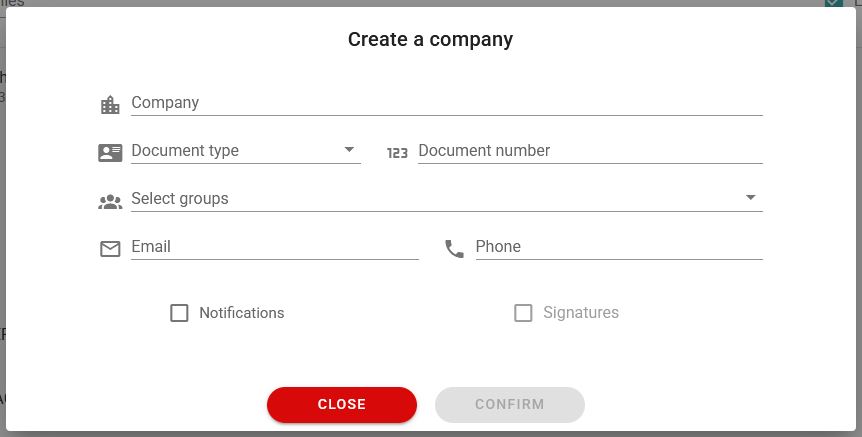
The Company, Document Type and Document Number data are required.
The Email and Telephone data are optional.
If a group has been defined in the Groups section, they can be selected in the Select groups option. See the section of the manual on creating Groups.
In the case of Notifications, the companies created will be authorized companies, that is, those that have authorized the office to receive their notifications.
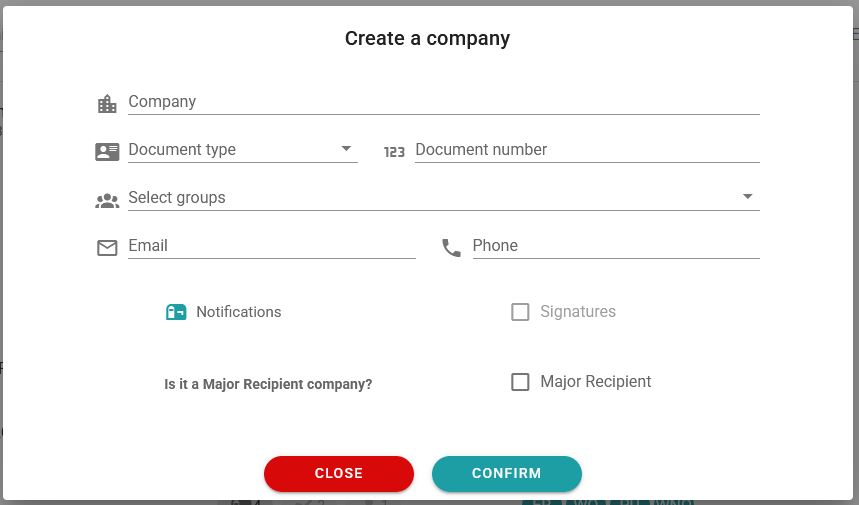
It can be indicated that a company is ‘Major Recipient’, so that the representative of said company can be registered so that they can upload the digital certificate of Major Recipient of said company to the platform, thus authorizing the office to have access to all notifications that are received without the need to grant power in each agency.
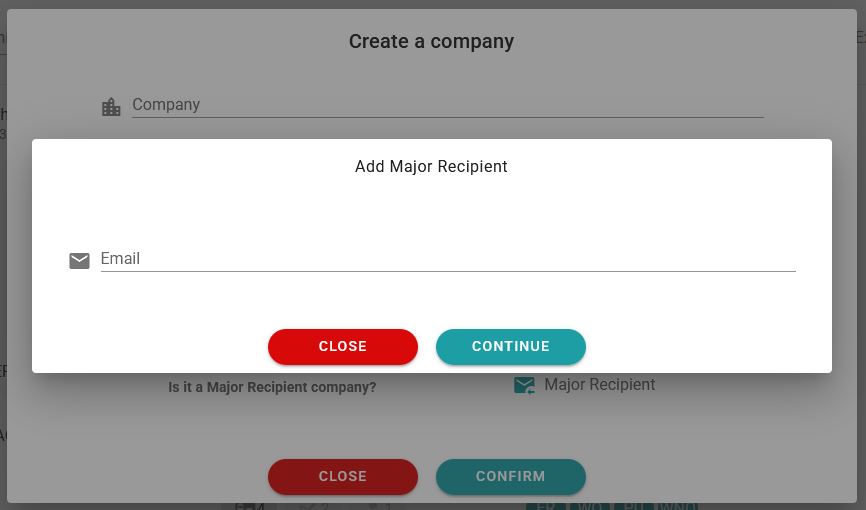
The companies for which all their notifications are managed because they are registered as Major Recipients have the letters GD in the list next to their Identity Document.

And, if there is any incident with the certificate (it has not been uploaded yet, it is expired or revoked, etc.), a warning triangle is displayed. By positioning the mouse over it, it shows us the incident:

Company Type Admin User
To create companies through the menu, we press the button  , which is located in the upper right corner.

When you press the button, a form is displayed to complete the company information.
In this form, the company’s digital certificate and its password must be provided.
Once the data is completed, with the ‘confirm’ button the data is saved and the company is created.
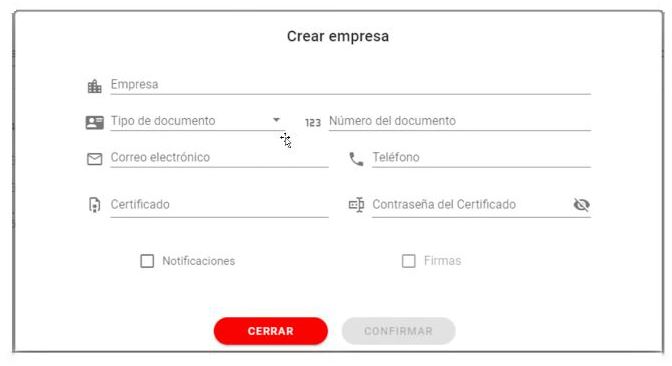
After this, the company will be created and will appear on the list.