
Target
Automated tasks are executed on established objectives. These objectives depend on the chosen action. Objectives have additional data that must be entered:
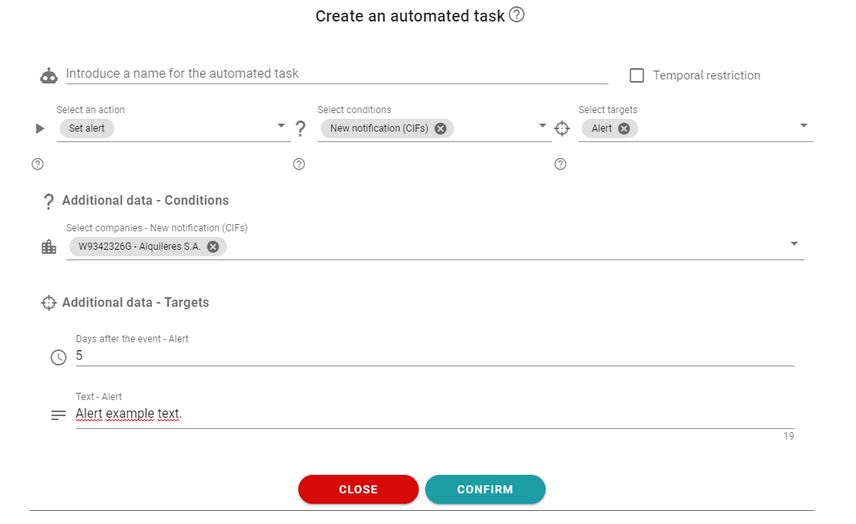
- Alert: When the action ‘Set alert’ is selected, the only available objective is ‘Alert’. When selected, fields are displayed to provide information about it. The additional data for the alert are:
- Days after the event: Relative date for the alert. For example, if the automated task is executed on day 10 and we have entered 5 days in this field, the alert will be set, and the date will be day 15.
- Text: Text accompanying the alert.
Email:
When the “Send email” action is selected, up to five different types of targets can be configured to be executed within the same Automatic Task:
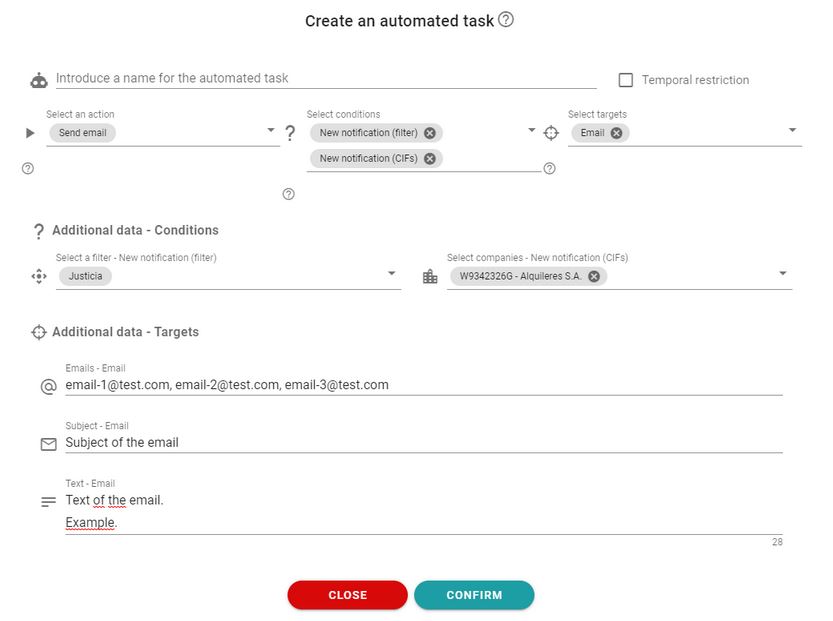
Email: to define specific email accounts to which the email will be sent when the conditions are met. The additional data to be configured are:
- Emails: email recipients
- Reply email: the email address where possible replies will be sent
- Subject: email subject. The text can be composed by adding notification metadata
- Text: email body. The text can be composed by adding notification metadata.
Email Text Formatting
You can format email texts to apply bold, italics, or underlines to any part of the text by wrapping it in the following characters:
Bold: Wrap the text in asterisks *. Example: *Open notification*
Italics: Wrap the text in underscores _. Example: _Headline_
Underline: Wrap the text in double underscores __. Example: __Important notice__
Witnesses: if the conditions are met, emails are sent to GoodOk operators who can view the notification. The additional data to be configured are:
- Reply email: the email address where possible replies will be sent
- Subject: email subject. The text can be composed by adding notification metadata
- Text: email body. The text can be composed by adding notification metadata
Groups: if the conditions are met, an email is sent to all members of the groups defined in the additional data, which are:
- Groups: the groups to which the email is sent
- Reply email: the email address where possible replies will be sent
- Subject: email subject. The text can be composed by adding notification metadata
- Text: email body. The text can be composed by adding notification metadata
Groups (witnesses only): if the conditions are met, an email is sent to operators of the defined groups who have access to the notification. The rest of the group operators do not receive the email. The additional data are:
- Groups: the groups whose operators with access to the notification will receive the email
- Reply email: the email address where possible replies will be sent
- Subject: email subject. The text can be composed by adding notification metadata
- Text: email body. The text can be composed by adding notification metadata
Holder: if the conditions are met, an email is sent to the account defined in the notification holder company record. If no account is defined, the email is not sent. The additional data are:
- Reply email: the email address where possible replies will be sent
- Subject: email subject. The text can be composed by adding notification metadata
- Text: email body. The text can be composed by adding notification metadata
Attachments: you can choose to include the main document, attachments, and the acknowledgment of receipt (if any) as attachments.
Notification link: a link to the notification is added at the end of the message text and is recorded in the “Shared With” section for management purposes.
The last two options are mutually exclusive: either attachments are sent, or a notification link is sent.
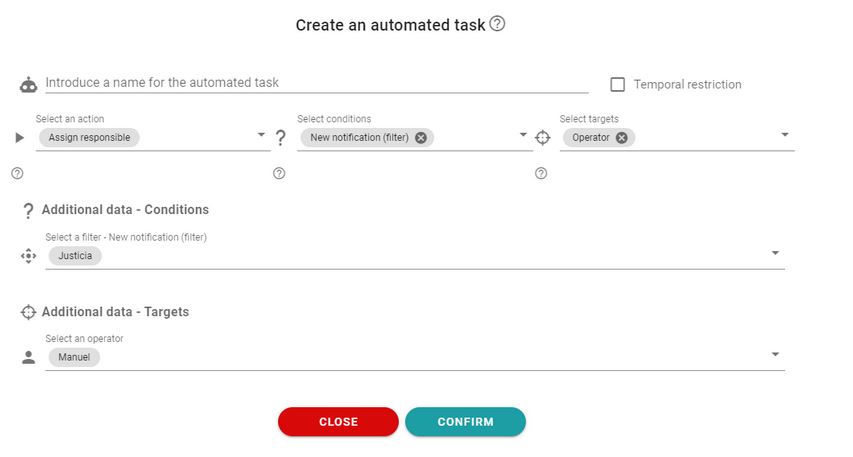
- Responsible: When selecting the “Assign responsible” action, you can choose either “Operator” to select an operator as the owner if conditions are met, or “Group” to assign a group as the owner of the notification.
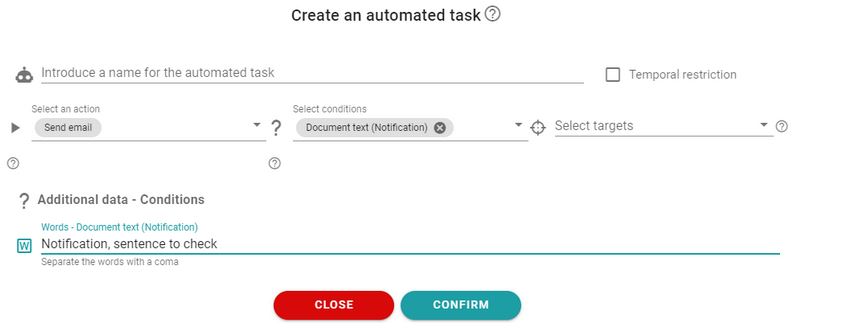
- Observation: When the action ‘Set observation’ is selected, the only available objective is ‘Observation’. When selected, fields are displayed to enter the text.
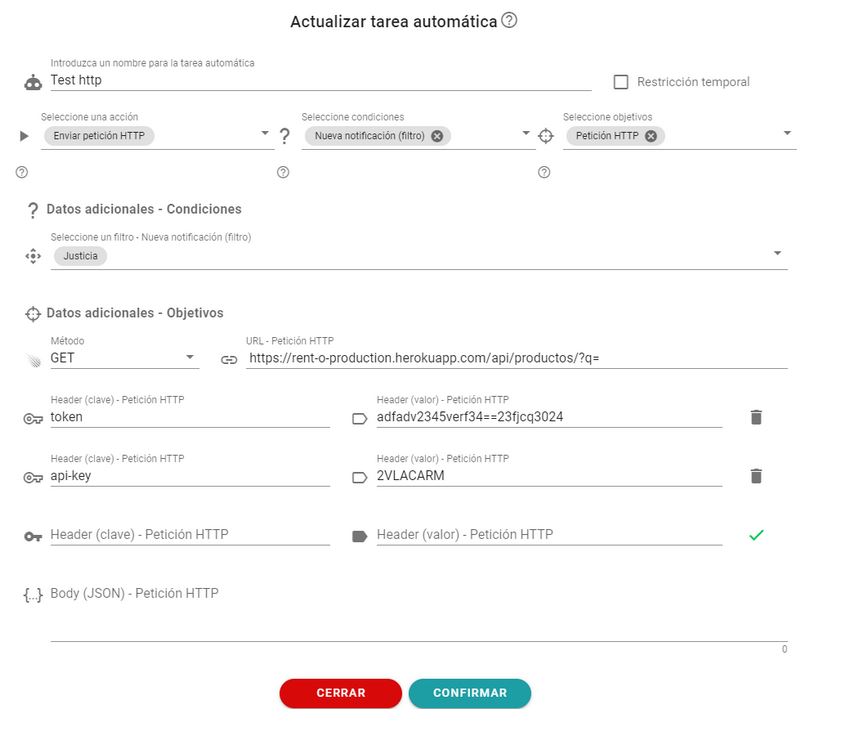
- HTTP Request: When selecting the “Send HTTP Request” action, the only available target is “HTTP Request.” When selecting it, fields are displayed to enter the URL, method, headers, and body.
Newsletter susbcribe
Receive all the news and updates about GoodOK in your email.